Why Sellers Move From A4 to Thermal Labels
Printing shipping labels on A4 paper means cutting, sticking, wasted sheets and labels that peel off. At 20 orders a day it is an annoyance. At 200 orders a day it is a real time cost and a source of errors, because a badly cut or poorly stuck label can lead to a lost or misrouted parcel.
A thermal label printer prints one self-adhesive label per parcel, ready to stick. For sellers shipping regularly, a thermal printer is one of the cheapest ways to speed up dispatch and reduce label errors. It uses heat instead of ink or toner, so with direct thermal printing the only consumable is the label roll.
What Is a Thermal Label Printer?
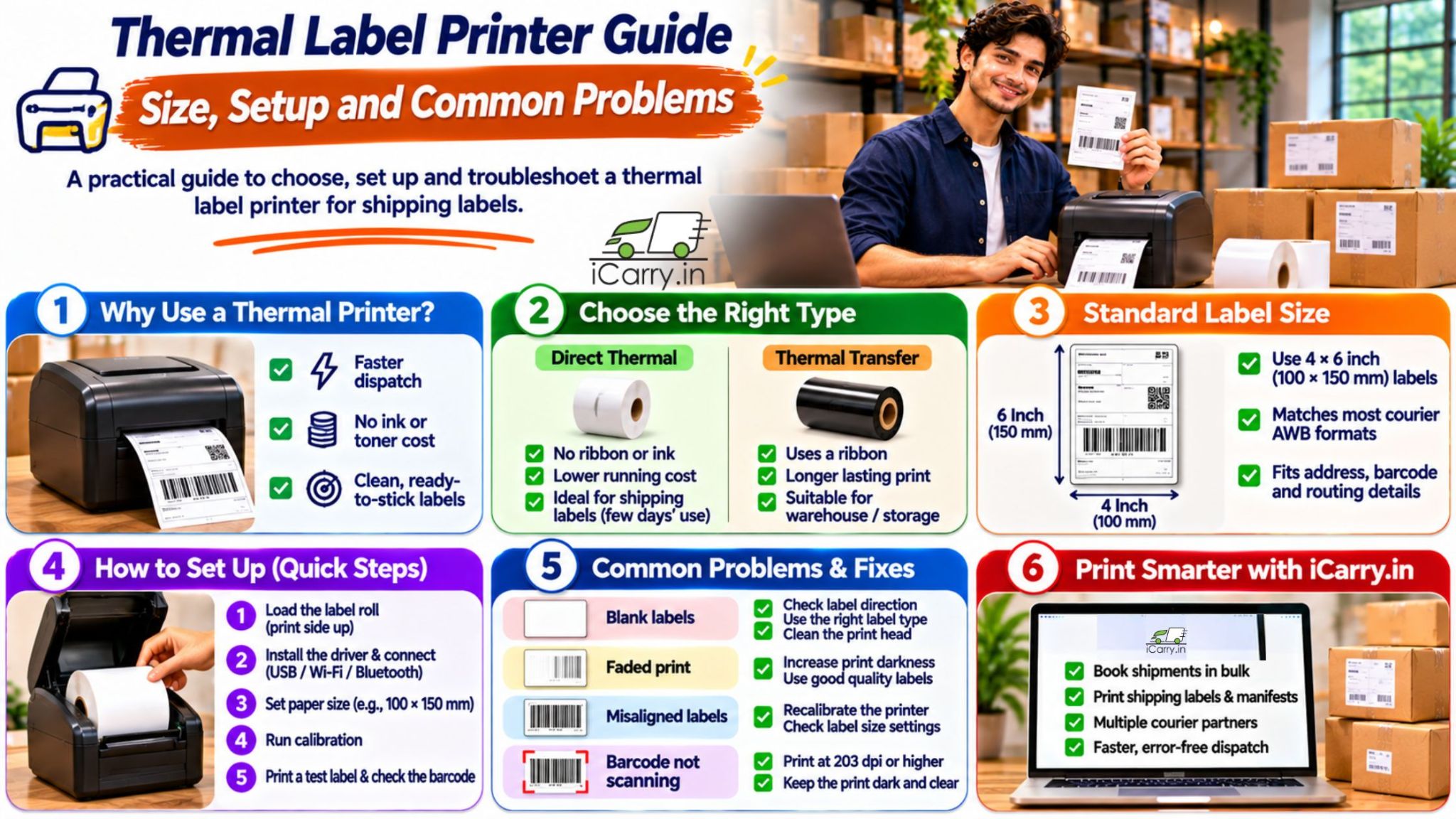
A thermal label printer is a compact printer that uses heat, not ink or toner, to print self-adhesive labels. Shipping labels are usually printed at 4 x 6 inches (about 100 x 150 mm) on direct thermal rolls, so each parcel gets one clean, ready-to-stick label.
Direct Thermal vs Thermal Transfer
- Direct thermal: Heat darkens special heat-sensitive label paper. No ribbon or ink. Simple and cheap to run. Labels can fade over time with heat, sunlight and rubbing. Suitable for most shipping labels that are used within days
- Thermal transfer: A ribbon melts onto the label. Print lasts longer and resists heat and abrasion. Needs ribbons as well as labels. Suitable for labels that need to last, such as long-term storage or warehouse labelling
For standard courier labels, direct thermal is the common choice because the label is only needed for a few days.
The Standard Shipping Label Size
The most common shipping label size is 4 x 6 inches, which is about 100 x 150 mm. It fits the AWB, barcode, addresses and routing details clearly on one label.
- Check the label size available in your courier or shipping platform account
- Buy label rolls that match the size you print, and set the same size in the printer settings
- Choose the right core size and roll width for your printer model
- Keep a few smaller labels (for example 50 x 25 mm) for product or SKU stickers if you use barcodes for picking
How to Choose a Thermal Printer
- Label width: Choose a printer that supports 4-inch wide labels
- Print resolution: 203 dpi is usually enough for shipping labels. Higher resolution is useful for very small barcodes or fine text
- Print speed: Higher speed helps at volume. At very low volume, a basic model is fine
- Connectivity: USB is the most stable. Wi-Fi or Bluetooth helps if the printer is shared, but check driver support
- Compatibility: Confirm that it works with your computer and operating system, and with your shipping platform
- Duty cycle: A printer meant for light use will struggle with hundreds of labels a day
- Consumables and support: Check that label rolls and spares are easy to buy locally, and that service is available in your city
How to Set Up Your Thermal Printer
- Step 1: Unbox and load the label roll with the printing side facing up, following the printer's guide
- Step 2: Install the correct driver for your computer, and connect via USB or the chosen wireless method
- Step 3: Set the paper size to match your labels, for example 100 x 150 mm
- Step 4: Run the printer's calibration so it learns where each label starts and ends
- Step 5: Print a test label. Check the layout, barcode and text
- Step 6: In your browser or print dialog, set scale to 100%, margins to none and the same paper size as the labels
- Step 7: Print a label from your shipping account and check that the barcode scans with a phone or scanner
To see how labels and manifests are printed in iCarry®, watch How to Print Shipment Label and Manifest. Check the label sizes available in your iCarry® panel and match them to your printer settings.
Prefer to learn by watching? See the step-by-step iCarry® video tutorials for printing labels and manifests.
Common Problems and Fixes
Blank Labels
- Check that the roll is loaded the right way up. Direct thermal paper prints on only one side
- Confirm that you are using direct thermal labels in a direct thermal printer. If the printer is set for thermal transfer and no ribbon is fitted, it will print blank
- Check that the print head is not dirty or damaged
Faded or Light Print
- Increase the print darkness setting
- Reduce print speed
- Clean the print head. Dust and glue residue cause faint stripes
- Replace old or poor-quality label rolls
Streaks or Lines on the Label
- Clean the print head with isopropyl alcohol and a lint-free swab, when the printer is off and cool
- Clean the platen roller as well
- If lines remain, the print head may be worn and need replacement
Labels Misaligned or Printing Across Two Labels
- Run the calibration again so the sensor learns the label gap
- Check that the paper size in the driver and in the print dialog match the label size
- Check that the roll is not loose and the guides are set correctly
Barcode Not Scanning
- Increase print darkness a little, but not so much that bars bleed
- Print at 100% scale. Resizing a barcode can make it unreadable
- Do not print on creased or damaged labels
- Test with the courier's scanner or a phone app after printing the first label
Labels Cut Off or Content Missing
- Set margins to none and scale to 100%
- Check that you chose the correct label format in the shipping account
- Make sure the browser print setting is not set to 'fit to page' if it shrinks the content
Label Jam or Roll Not Feeding
- Remove the roll, check for adhesive build-up and re-load it correctly
- Check that the roll core fits the holder and spins freely
- Clean sensors and the paper path
Care and Maintenance
- Clean the print head every few rolls or when print quality drops
- Store label rolls in a cool, dry place away from direct sun and heat, since direct thermal paper darkens when overheated
- In monsoon, keep rolls dry. Damp labels fail to stick and print poorly
- Keep spare rolls on hand so you do not run out in the middle of a dispatch
- Cover the printed label with clear tape on parcels that may be exposed to rain or rubbing
Book orders in one session and print labels together with a free iCarry® account.
How iCarry® Fits Into Your Label Workflow
iCarry® is a courier aggregator that lets sellers book shipments across multiple courier partners and print shipping labels and pickup manifests from one account.
- Bulk Booking and Batch Printing: Book multiple orders in one session and print shipping labels together to simplify high-volume order processing.
- Manifest Printing: Generate and print pickup manifests alongside your shipping labels to keep shipment handovers organised.
- Multiple Courier Partners: Compare available courier options and select the appropriate courier for each order before generating its shipping label.
- Shipment Management: Track, filter and manage your shipments from your iCarry® dashboard.
Start with the free Bronze plan, with no minimum shipment volume.
Frequently Asked Questions (FAQs)
What size label do I need for a shipping label printer?
The most common size is 4 x 6 inches, about 100 x 150 mm. Check the label size available in your courier or shipping platform account, buy label rolls to match, and set the same size in your printer and print dialog.
Why is my thermal printer printing blank labels?
Most often the roll is loaded the wrong way, the labels are not direct thermal stock, or the printer is set for thermal transfer without a ribbon. Check the roll direction, the label type and the printer settings, then clean the print head.
Why do my thermal labels fade?
Direct thermal labels darken with heat and fade with heat, sunlight and rubbing. Store rolls cool and dry, avoid leaving printed labels in the sun, and cover labels with clear tape on parcels that may be exposed to friction or rain.
Do I need a ribbon for shipping labels?
Not for direct thermal printing, which is the common choice for shipping labels. Thermal transfer printing needs a ribbon but produces longer-lasting prints, which is useful for labels that must last a long time.
Thermal label printers print one self-adhesive label per parcel, ready to stick, and direct thermal is the common choice for standard courier labels at 4 x 6 inches (about 100 x 150 mm). Check the label size in your shipping account, run calibration, set scale to 100% and margins to none, and check that the barcode scans before dispatch. When problems appear, check the roll direction, label type, print darkness and print head first.